How to load a problem's database into DBeaver
This guide explains how to load into DBeaver the database of an SQL problem (the one you get with the Download the database button) so you can try your queries on your own computer before sending them to the judge.
The screenshots are from DBeaver Community 26.2 in English; with another version or operating system, the menus may look a little different.
What you need
- DBeaver Community, which is free. It is only the client: the tool where you write and run your queries.
- A database server on your computer, of the same kind as the problem's: MariaDB or MySQL (for example, the one that comes with XAMPP, where the user is
rootand the password is empty) or PostgreSQL. The kind is written in the sentence next to the download button. - The database's
.sqlfile (step 1). MongoDB databases can't be loaded with DBeaver Community.
1. Download the file
Open the problem, press View the database schema and, on the page that opens, press Download the database (you must be logged in). You will get a .sql file named after the database, for example hotel.sql.

2. Connect DBeaver to your server
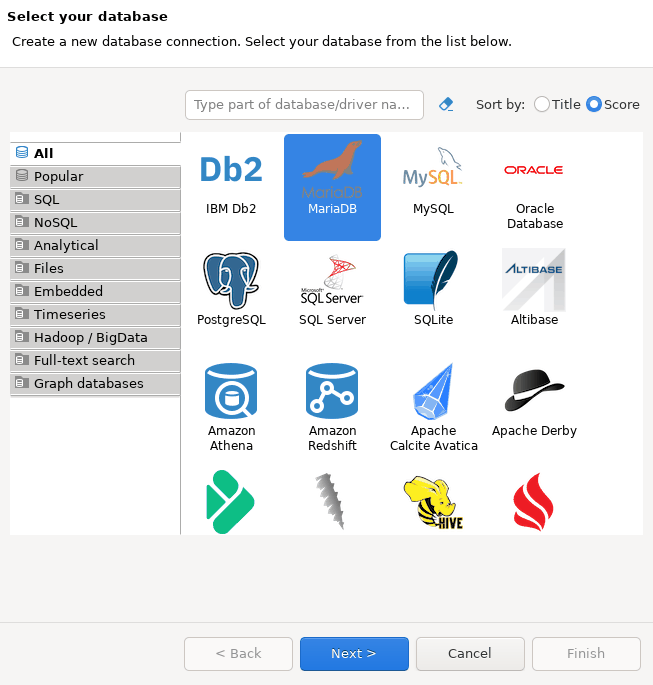
- In DBeaver, open the Database → New Database Connection menu (or press
Ctrl+Shift+N). Choose MariaDB, MySQL or PostgreSQL, as the problem's page says, and press Next.
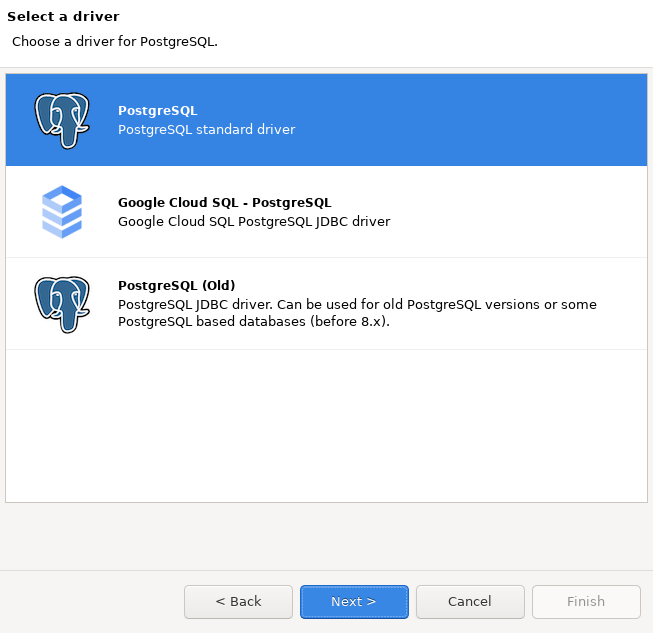
With PostgreSQL, DBeaver asks which driver you want: leave PostgreSQL (standard driver) selected and press Next.
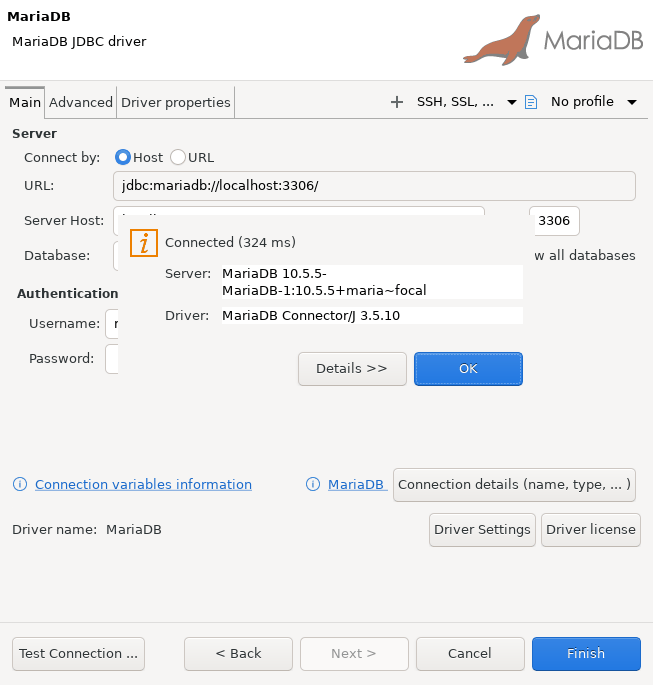
The host (
localhost) and the port (3306for MariaDB and MySQL,5432for PostgreSQL) are already filled in. Enter your user name and password.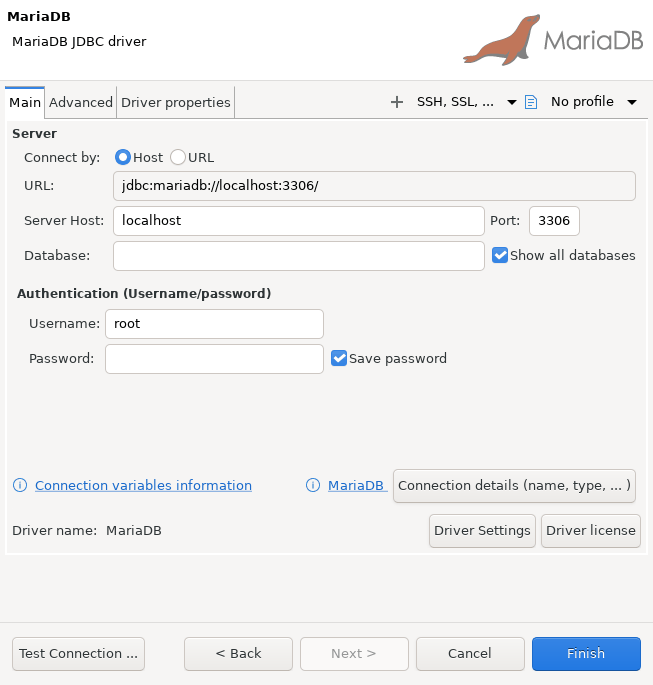
Press Test Connection. The first time, DBeaver will offer to download the driver: press Download.
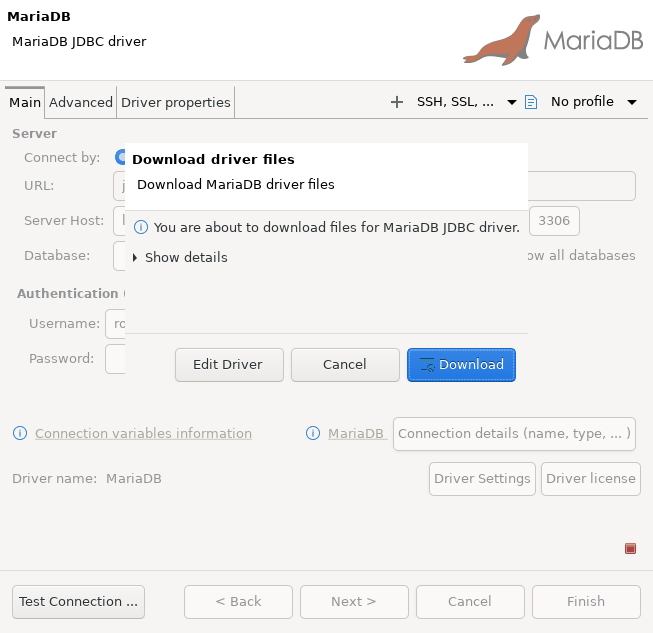
When it says Connected, press OK and then Finish.
3. Create an empty database
- Select the connection in the Connections panel on the left and open an SQL editor with SQL Editor → New SQL script (
Ctrl+]). Type
CREATE DATABASE hotel;(with any name you like) and run it withCtrl+Enter. It should say Updated Rows 1.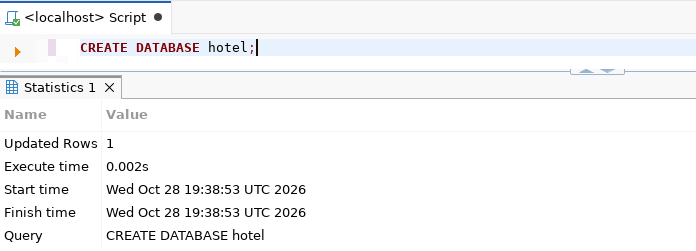
Click the connection and press
F5(Refresh) so the new database shows up.PostgreSQL only: for DBeaver to show all the databases and not just the one you opened, edit the connection (
F4) and, on the Main tab, tick Show all databases. With MariaDB it is ticked by default.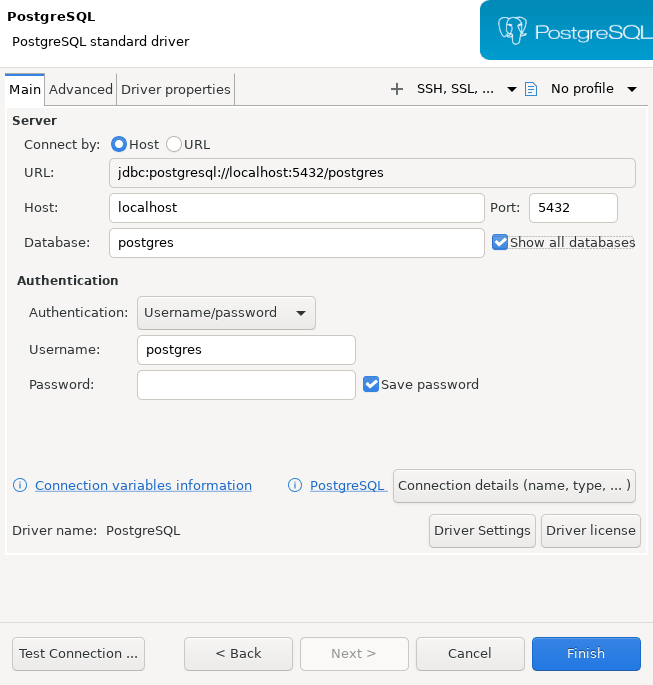
4. Load the file
Menu File → Open File... (
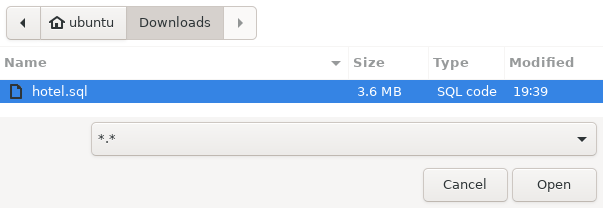
Ctrl+O) and pick the.sqlyou downloaded. It opens in an SQL editor, with<none>in the tab's title because it isn't tied to any connection yet.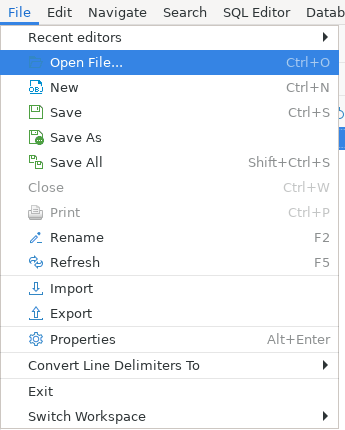
In the editor's toolbar, press < N/A > (Active datasource,
Ctrl+9), choose your connection and press Select.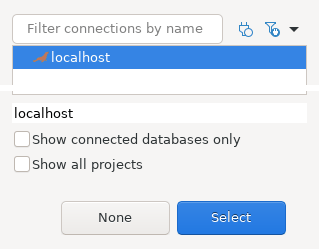
Right next to it a second selector will appear (Database/Schema,
Ctrl+0): choose in it the database you created in the previous step. With PostgreSQL a window with two lists opens: pick the database on the left andpublicon the right. Without this, DBeaver doesn't know where to load it. When you're done, the toolbar must show the connection's name and the database's:
If the new database isn't in the list, close it, press
F5on the connection (on the left) and try again.Run the whole file with
Alt+X(SQL Editor → Execute SQL script). Careful:Ctrl+Enteronly runs one statement.DBeaver will ask you one or two questions. MariaDB and MySQL files start by deleting the tables that already exist (
DROP TABLE IF EXISTS), which is why this one appears. Press Yes To All: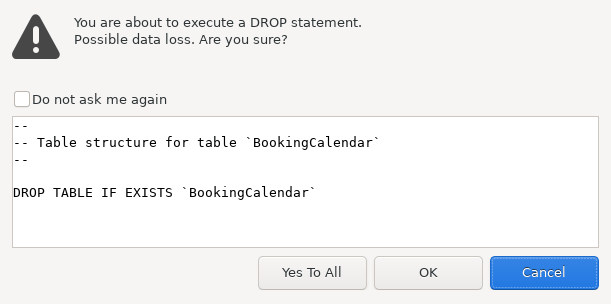
And, since the file is long, it will also ask whether you want to stop it from showing the result of every statement. Answer Yes, it will go much faster:
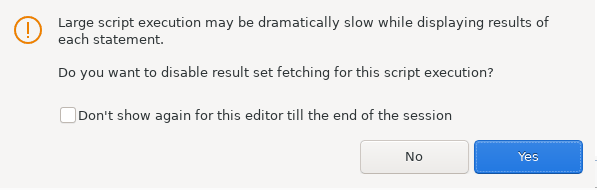
Wait for it to finish (a few seconds). A Statistics tab will show the number of statements run:
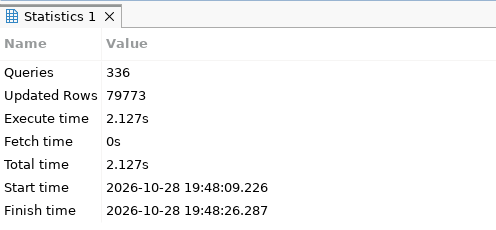
Press
F5on the connection and expand Databases → your database → Tables to see the tables.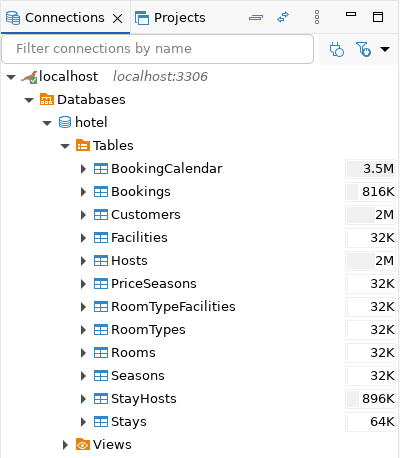
5. Try your queries
Select the database in the panel on the left, open an SQL editor (Ctrl+]) and write your queries. For example, on the hotel database: SELECT * FROM Rooms LIMIT 10;. Run it with Ctrl+Enter and the result appears below. When they look right, copy them into the problem's submission.
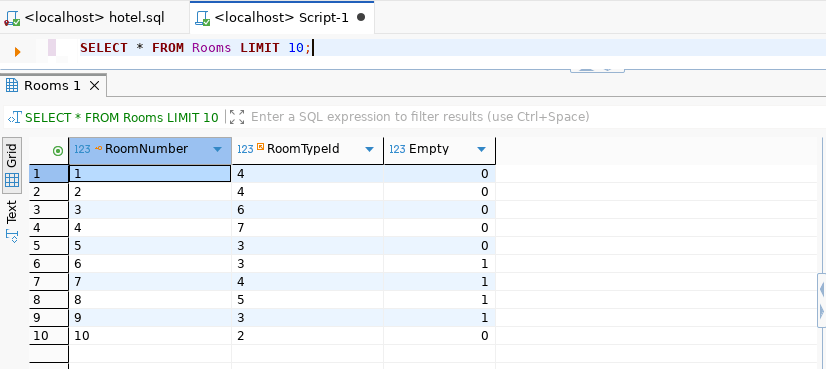
If something fails
- Nothing was loaded, or it says no database is selected: you didn't choose the database in the editor's toolbar (step 4.2).
- The new database isn't in the list: press
F5on the connection, on the left, and try again. - PostgreSQL only shows the
postgresdatabase: tick Show all databases in the connection (step 3.4). - MySQL 8: Public Key Retrieval is not allowed: in the connection, Driver properties tab, set
allowPublicKeyRetrievaltotrue. - PostgreSQL: unrecognized configuration parameter: your server is older than PostgreSQL 12; install a newer version.
- Without DBeaver: you can also load the file from a terminal, once the empty database is created. For MariaDB/MySQL:
mysql -u root -p hotel < hotel.sql. For PostgreSQL:psql -U postgres -d hotel -f hotel.sql. - The databases are generated with MariaDB 10.5 and PostgreSQL 17, the same ones the judge uses. They haven't been tested with MySQL 8: if you get errors, use MariaDB.